Windows wake timers not working with Modern Standby
If an application runs its scheduled work while your PC is awake but misses it during Modern Standby, check the sleep state and the application's wake timer first.
Modern Wakeup is a Windows driver and configuration utility for existing resumable wake timers. It mirrors an allowed application's timer with a kernel timer and requests an interactive resume when that timer fires. It does not create the application's schedule or change the application.
1. Check whether your PC uses Modern Standby
Open Terminal or Command Prompt as administrator and run:
powercfg /aLook for Standby (S0 Low Power Idle) among the available sleep states. Windows may also show whether networking is connected or disconnected in that state. Modern Wakeup addresses application wake timers during S0 Modern Standby.
If the PC uses S3 sleep, or the missed task occurs after hibernation or shutdown, this guide does not establish that Modern Wakeup will help. Check the application's scheduling options and the PC's power settings for that sleep state.
2. Check that the application requests a wakeup
Enable the application's option to wake the PC, if it has one, and schedule a task in the future. While the application or its scheduling service is running, use the administrator terminal to run:
powercfg /waketimersThis lists active wake timers reported by Windows. Look for a timer belonging to the application or its service. An application may create its timer only shortly before a task is due, so an empty list is a reason to check the application's behaviour rather than proof of a fault.
Modern Wakeup needs an existing resumable timer to mirror. It cannot make an application schedule work if the application has not requested a wake timer.
A traditional wake timer and permission to run a desktop application during Modern Standby are different parts of Windows power management. An existing timer does not guarantee that the application's scheduled work will run. Modern Wakeup requests an interactive resume so the application can become active again.
Microsoft documents the commands in its powercfg reference and the application API in its SetWaitableTimerEx reference.
3. Install and test Modern Wakeup
- Download Modern Wakeup for Windows x64, run it, and approve the administrator prompt.
- Choose Install Driver. The 7-day trial begins when the driver is first installed.
- In Allowed wake timers, add the executable name of the application or service that owns the timer. Put one name or wildcard pattern on each line, then choose Save allowlist. Use the timer's requester name, which may differ from the application's launcher.
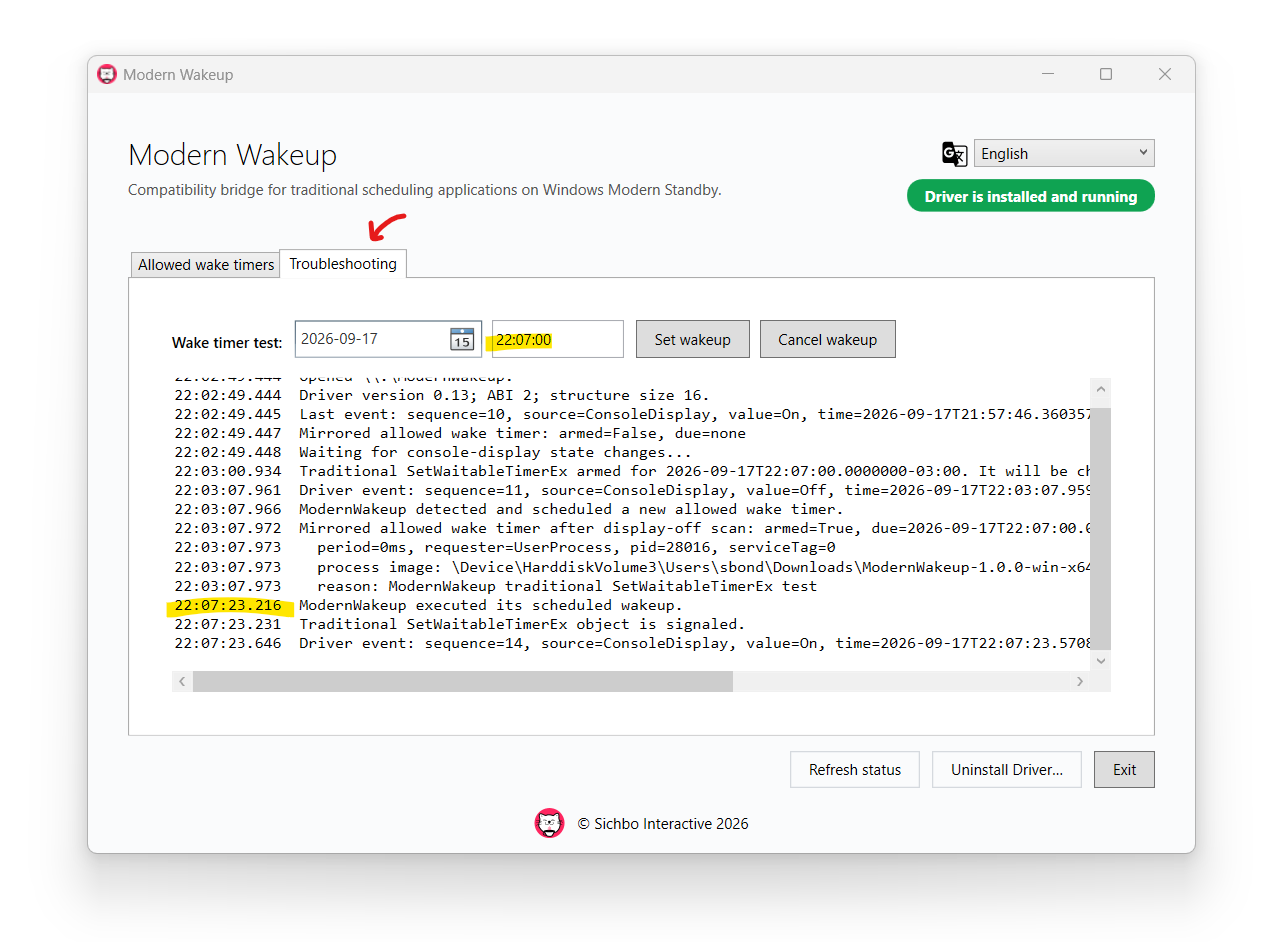
- Open Troubleshooting. To try the built-in test, make sure the allowlist contains the filename of the Modern Wakeup executable you are running. For the current download, that is something like
ModernWakeup-1.0.0-win-x64.exe, so the defaultmodernwakeup*.exerule already covers it. - Choose a date and time a few minutes in the future and select Set wakeup. Keep the app open for this test because it owns the test timer.
- Choose Refresh status and check the mirrored timer's requester and deadline. Only the earliest allowed timer is mirrored, so another application's earlier timer may appear first.
- Put the PC into sleep through the Windows power menu. After it wakes, check the diagnostic messages and whether the test timer was signaled. Allow for the timing limits described below.
Once the built-in test works, repeat the check with the application's own scheduled task. Confirm that the work actually completed. A screen turning on alone does not confirm that the application ran its task.
The ModernWakeup-1.0.0-win-x64.exe configuration app can be closed or even deleted from your PC when testing is complete. Only the Modern Wakeup driver need remain installed and running in Device Manager for everything to work.
If the PC still does not wake
- Check that the Modern Wakeup configuration app reports the driver as installed and running.
- Check that the trial has not expired or that a valid license is present.
- Confirm that the allowlist matches the timer requester. Matching is case-insensitive. An empty list or a list with no matching rule leaves the timer unmirrored.
- Choose Refresh status after changing a schedule. The driver scans when the display turns off and when timer status is requested. A timer created after the last scan is not known until another scan happens.
- Check the selected deadline. Modern Wakeup mirrors only the earliest allowed future timer.
-
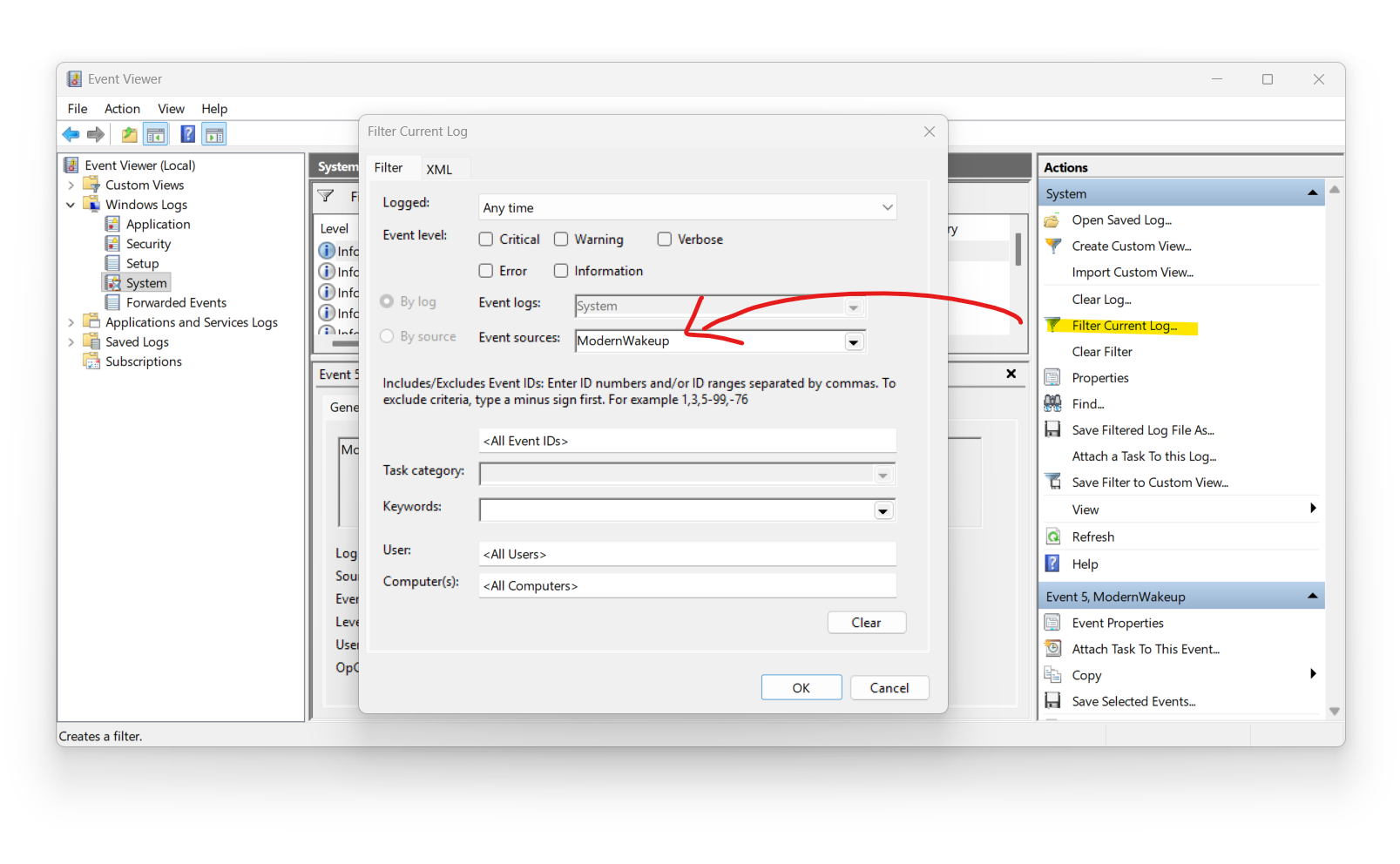
Open Event Viewer, select Windows Logs, then System, and look for (or filter on) the ModernWakeup source.
 You can also use the app's Troubleshooting tab which displays driver messages.
Compatibility and limits
Which applications can use it?
Modern Wakeup works with existing resumable timers created through Windows APIs such as SetWaitableTimer and SetWaitableTimerEx. Compatibility depends on how the application schedules work and on the PC's power behaviour. Use the trial to test your application and device before purchasing.
Which platform is the download for?
Modern Wakeup is tested on Windows 10 and Windows 11, x64, on PCs using S0 Modern Standby. The current download includes an x64 driver only, and no ARM64 or 32-bit drivers. Administrator access is required for installation and configuration.
Does it disable Modern Standby or restore S3 sleep?
No. Modern Wakeup works with the PC's existing Modern Standby configuration. It does not change the sleep states supported by the firmware or enable S3 sleep.
Does the display turn on?
The driver requests an interactive resume, including display activity and user presence. The display may turn on. Windows can turn it off again according to the normal power policy.
Will the PC wake at the exact scheduled time?
Wake timing depends on Windows power policy, firmware, hardware, and Modern Standby scheduling. Delays of up to one or two minutes are normal, although usually less. Test the timing on your own PC before relying on it for a scheduled task.
Will it behave the same on battery and mains power?
Do not assume the results will be the same. Test under the power conditions you intend to use, because Windows power policy can affect wake behaviour.
What happens when the trial ends?
The trial lasts 7 days from the first driver installation. A timer due at or after the trial expiry is not mirrored without a valid license. The app shows the trial status and accepts a license key.
Removing the driver
Open Modern Wakeup, choose Uninstall Driver. The app stops the driver, removes its package from the Windows Driver Store, and attempts to remove the active configuration directory. Copy your allowlist at C:\ProgramData\ModernWakeup\ModernWakeup-Allowed-Timers.txt first if you want to keep it.
You can also uninstall the driver manually through the Device Manager > System devices category by right-clicking Modern Wakeup and selecting Uninstall device.
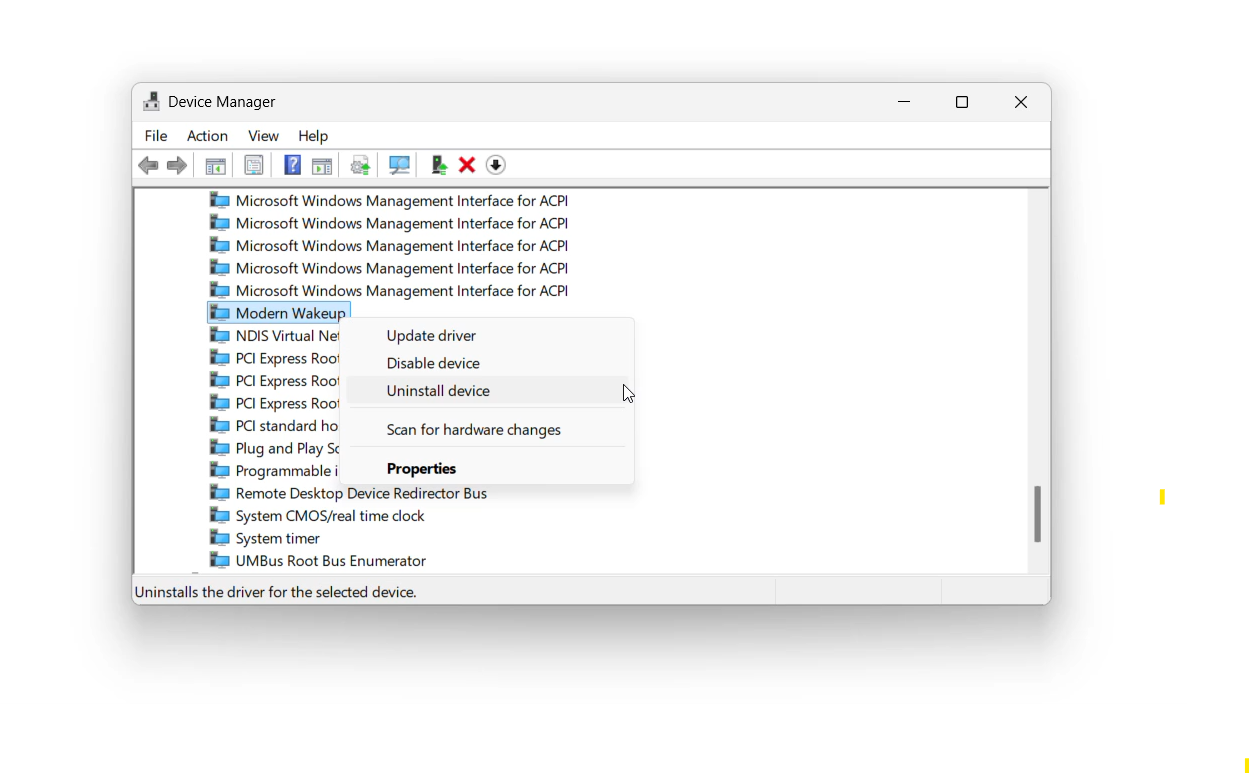
Or through command prompt by:
- Running
pnputil /enum-driversand finding the entry with Original Name modernwakeup.driver.inf and note its Published Name, such asoem42.inf. sc.exe stop ModernWakeuppnputil /delete-driver oem42.inf /uninstall